Question

Winget Upgrade Worklet

  • January 28, 2026
  • 2 replies
  • 16 views

Forum|alt.badge.img

We noticed that there are some Winget upgrades available that Automox’s native 3rd party patching seems to miss. We have this script that works in the user context, but we are having trouble making it succeed as a worklet because Automox runs as System. Any advice?


# Winget Upgrade All - Silent Execution
# Returns exit codes compatible with Windows Task Scheduler logging

try {
# Run winget upgrade for all packages, silently accepting prompts
winget upgrade --all --accept-package-agreements --accept-source-agreements --silent --include-unknown

$exitCode = $LASTEXITCODE

if ($exitCode -eq 0) {
Write-Output "SUCCESS: All packages upgraded successfully."
exit 0
} else {
Write-Output "WARNING: Winget upgrade completed with exit code $exitCode."
exit $exitCode
}
}
catch {
Write-Error "ERROR: Failed to execute winget upgrade. $_"
exit 1
}
 

2 replies

Forum|alt.badge.img
  • Automox Employee
  • January 28, 2026

Hi Matthew,

If Automox is missing updates, they are most likely in the user context only as stated, which is where the user-context winget command can help.

There are two approaches that I recommend since Automox is running as system. 

  1. Run winget as system to install system-wide version of said applications (recommended)
  2. Create a startup-task running as user to trigger your winget script as written.

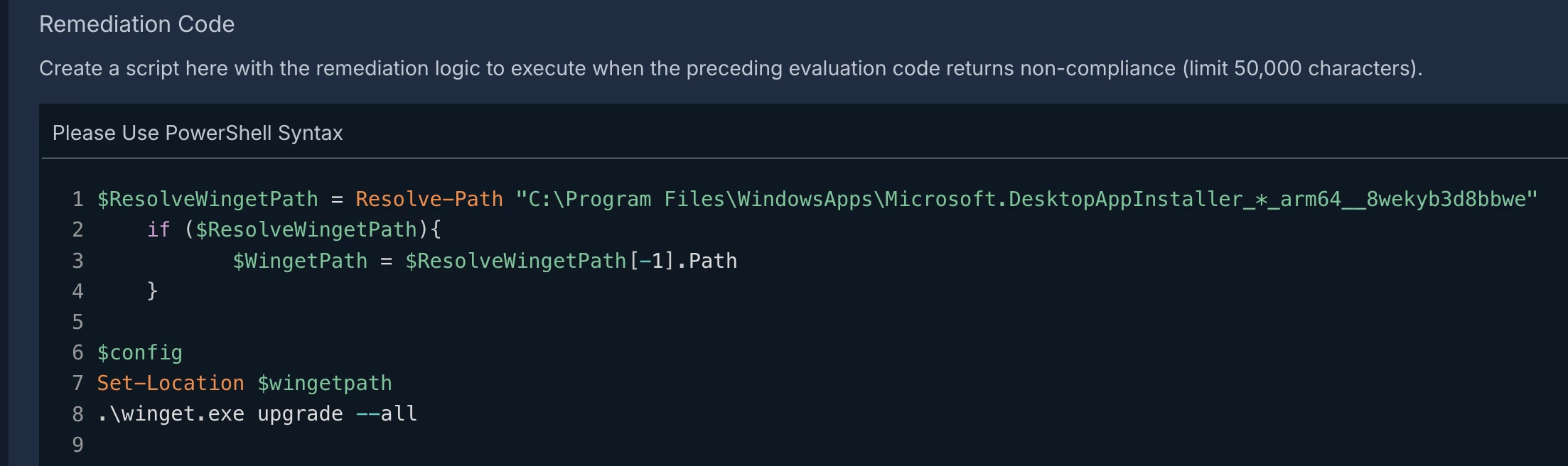
This is an example of a Winget Worklet to update everything system-wide, but this can also be scoped down of course to per-app levels. I would run this as needed rather than scheduled to make the most use of the Automox update intelligence, scheduling, and reporting:
 

In the directory, make sure you are either reference arm64 or x64 depending on architecture
$ResolveWingetPath = Resolve-Path "C:\Program Files\WindowsApps\Microsoft.DesktopAppInstaller_*_arm64__8wekyb3d8bbwe"
if ($ResolveWingetPath){
$WingetPath = $ResolveWingetPath[-1].Path
}

$config
Set-Location $wingetpath
.\winget.exe upgrade --all


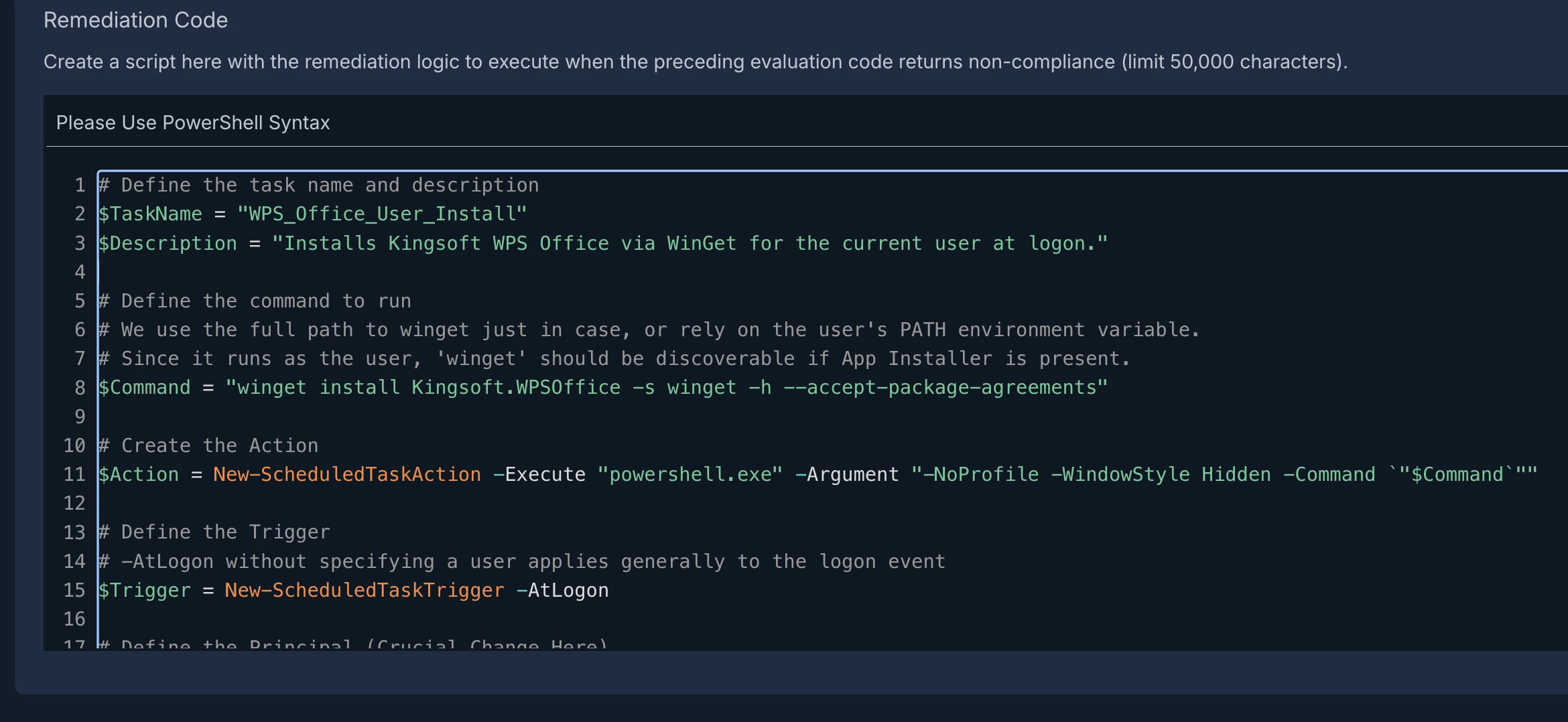
In this example (option 2) I’m running a startup task for this application (wps office, hate it) since it is ONLY user based and literally impossible to install as system. It runs on user login to check for update and if present, update.

# Define the task name and description
$TaskName = "WPS_Office_User_Install"
$Description = "Installs Kingsoft WPS Office via WinGet for the current user at logon."

# Define the command to run
# We use the full path to winget just in case, or rely on the user's PATH environment variable.
# Since it runs as the user, 'winget' should be discoverable if App Installer is present.
$Command = "winget install Kingsoft.WPSOffice -s winget -h --accept-package-agreements"

# Create the Action
$Action = New-ScheduledTaskAction -Execute "powershell.exe" -Argument "-NoProfile -WindowStyle Hidden -Command `"$Command`""

# Define the Trigger
# -AtLogon without specifying a user applies generally to the logon event
$Trigger = New-ScheduledTaskTrigger -AtLogon

# Define the Principal (Crucial Change Here)
# We use GroupId "BUILTIN\Users" so it inherits the permissions of whoever is logging in.
$Principal = New-ScheduledTaskPrincipal -GroupId "BUILTIN\Users" -RunLevel Limited

# Define Settings
$Settings = New-ScheduledTaskSettingsSet -AllowStartIfOnBatteries -DontStopIfGoingOnBatteries -StartWhenAvailable -MultipleInstances Parallel

# Register the Task
try {
Register-ScheduledTask -TaskName $TaskName `
-Action $Action `
-Trigger $Trigger `
-Principal $Principal `
-Settings $Settings `
-Description $Description `
-Force | Out-Null

Write-Host "Scheduled Task '$TaskName' successfully created." -ForegroundColor Green
Write-Host "The task will run as the logged-in user whenever they sign in." -ForegroundColor Gray
}
catch {
Write-Error "Failed to create task. Ensure you are running PowerShell as Administrator."
Write-Error $_.Exception.Message
}


Regards,

Mark


Forum|alt.badge.img

Hi Mark, thanks!