Question

Device re-adding after deletion

  • February 4, 2026
  • 3 replies
  • 21 views

Forum|alt.badge.img

I’m using the worklet to delete devices after 30 days of being disconnected.  I currently have a script in Intune that should add in the access key as well as stop then start the Automox service.  This has been working for some time.
However, I’m now seeing “to many Requests” within the amagent logs and devices not being added back in.  I know Automox suggests uninstalling and re-install the agent manually but within the environment and with limited numbers on my team this isn’t a viable option.
I do also have the Automox agent as required within Intune so am trialling a group for uninstalling the agent to which I’ll then remove those devices and the app should re-install.
Anyone got a better way and an automated way of getting devices to add back to the portal that have been deleted

3 replies

ASkrodzki-Automox

Hey there,

If you’re utilizing a cleanup worklet, I would only utilize that to remove the Automox agent. Then, just have Automox reinstall the agent automatically at next device scan (typically this is daily in Corporate environments).

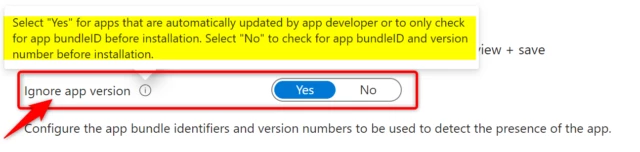
In Intune, when you build the package as a line-of-business app with the MSI, all you need to ensure is the package is set to ‘Ignore app version’. This prevents double deployment which may be what’s happening. Let our backend service handle the upgrade. Here’s the Intune package setting for the agent:

Once Intune automatically redeploys the Automox agent (if it is not installed), the Automox services will automatically startup. 

If you’ve repackaged our application in the .Intunewin format to utilize the Win32 method, you will need to be specific about detection. Utilize the following link for guidance: Onboarding Jumpstart Guide - Manage Your Environment.

You could also maintain a simple remediation script to check if the agent is not running, under the Scripts & Remediation section with low code to check if the amagent service is running, if not then net start amagent, and use basic exit codes.

Code considerations: simple loop with retry attempts.
Not recommended: I would not net stop and restart the agent, it adds unnecessary risks. Instead, maintain a user and device security group to add specific users and devices to run as ‘Out-of-Band’. I repeat, avoid stopping/breaking communication for every device in your tenant and only run it as-needed. Refer to the command line guide for basic guidance Agent Command Line Guide.

As simple guidance, I used Otto AI to demonstrate what I might run from Intune as-needed.

# ======================
# Otto AI Generated Code
# ======================
# Define the service name for the Automox agent
$serviceName = "amagent"

# Get the service status
$service = Get-Service -Name $serviceName -ErrorAction Stop

# Check if the service is running
if ($service.Status -eq 'Running') {
Write-Host "The Automox agent service is already running."
exit 0 # Exit with code 0 if the service is running
} else {
Write-Host "The Automox agent service is not running. Attempting to start it..."

# Attempt to start the service
try {
Start-Service -Name $serviceName -ErrorAction Stop
Write-Host "The Automox agent service has been started successfully."
exit 0 # Exit with code 0 if the service started successfully
} catch {
Write-Host "Failed to start the Automox agent service. Error: $_"
exit 1 # Exit with code 1 if there was an error starting the service
}
}


Let me know if you have any questions, thanks!


Forum|alt.badge.img
  • Author
  • Rookie
  • February 5, 2026

Thanks for this ASkrodzki.  I noticed in the documentation and the command Line guide there is the --deregister command.  Wondering if I added this to my script if the log has invalid key this could deregister the device and then when it next tries to run it’ll register the device again as a new one?


ASkrodzki-Automox

@Hoadoar Per best practice, removal of devices and installation should be separated into two separate workflows.
1) Script to uninstall Automox from devices, performed manually from the console, or removed with our API cleanup worklet,
2) Then a package in your MDM/Intune to reinstall package and to restart the client.

To be on the safe side, I do not recommend having a singular process joining both workflows (device removal & reinstallation). Another risk would be that it could prevent your devices from deploying correctly. If the application is fully uninstalled, then Intune will install Automox. I would review to see if you have the correct access code for the installer in the Intune package which points at an existing group in the Automox console. If you are installing the agent to a group that no longer exists, then you may run into errors as you’ve noted.

The deregister command is primarily designed to remove the agent from the console without removing the agent from the device; a workflow where we include this is per the creation of Golden images in the following guide: How to Create a Gold Image. You would utilize this to keep the agent installed, not running, and ready to be re-registered at the time of next reboot - great for laptops waiting on the shelf for deployment!

I recommend raising a service request so that our team can explain best practices in greater detail.