

Worklet: Install CrowdStrike on Windows (API)
Hi all, I know CrowdStrike integrates with Automox to easily install it. but here’s another way to install it via Automox.
Basically this script utilises the CrowdStrike Sensor Download API to get the 2nd latest Windows Sensor, which then pulls it to a temp directory and then runs the installer.
There’s a few things we need to do first before we get this working. You will need to log in to the CrowdStrike Portal and ‘Add new API Client’ - https://falcon.crowdstrike.com/support/api-clients-and-keys - once added, you’ll get your Client ID and Secret, keep these to hand as you will need to paste it in the Worklet section as shown below, replacing the CLIENTID and SECRETKEY with the relevant details.
Body = 'client_id=CLIENTID&client_secret=SECRETKEY'Also, you will need to click on ‘Edit’ on your newly made API client and tick the tickbox under the ‘read’ section for Sensor Download API
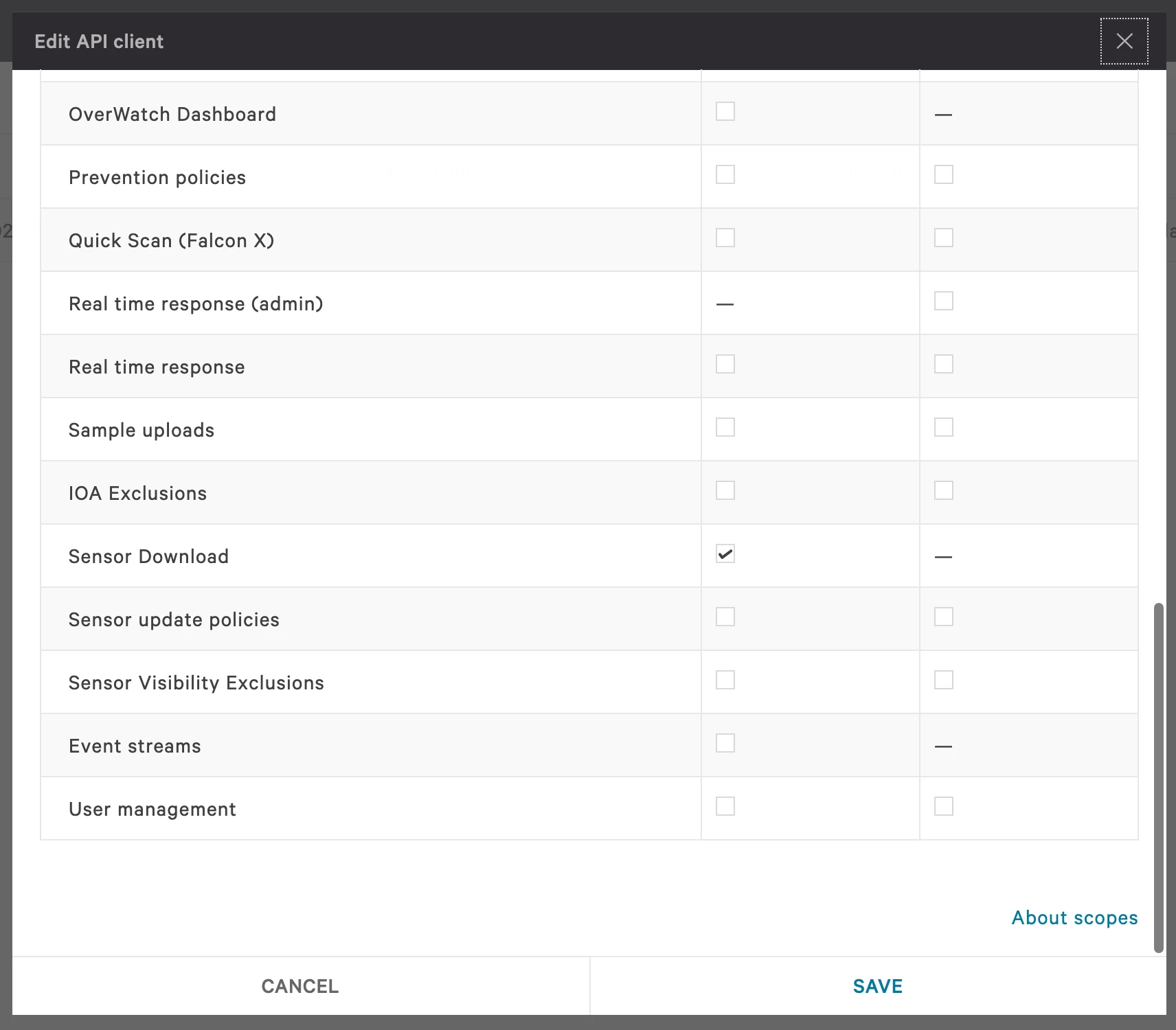
You will also need to get your Customer ID (CID), which you can find here once logged in - https://falcon.crowdstrike.com/hosts/sensor-downloads. Replacing the XXX in CID= with your Customer ID number
Start-Process -FilePath $path_to_file -argumentlist "/install /quiet /norestart CID=XXXX" -Verbose
You may also want to get the latest version of the CrowdStrike agent instead of the 2nd latest, by changing the following [1] to [0] below in the script
$SensorsID = ($Sensors.resources | Where-Object {$_.os -like "Windows"})[1] | Select-Object -ExpandProperty sha256
Evaluation
if (Test-Path -Path "C:\Program Files\CrowdStrike")
    {
    	exit 0
    }
    else
    {
    	Exit 1
    }
Remediation
$path = "C:\temp\"

if(!(Test-Path -path $path))
{
    New-Item -ItemType directory -Path $path -Verbose
    Write-Output "The folder path has been created successfully at $path"
}
else
{
    Write-Output "The folder $path already exists"
}

Start-Transcript -Verbose -Path "c:\temp\crowdstrike.log"

$Param = @{
    Uri = 'https://api.crowdstrike.com/oauth2/token'
    Method = 'post'
    Headers = @{
    accept = 'application/json'
    'content-type' = 'application/x-www-form-urlencoded'
    }
    Body = 'client_id=XXX&client_secret=XXX'
}

$Token = Invoke-RestMethod @Param

$Token.access_token

$Param2 = @{
    Uri = ("https://api.crowdstrike.com/sensors/combined/installers/v1")
    Method = 'get'
    Headers = @{
    accept = 'application/json'
    authorization = "$($Token.token_type) $($Token.access_token)"
    }
}

$Sensors = Invoke-RestMethod @Param2
$SensorsID = ($Sensors.resources | Where-Object {$_.os -like "Windows"})[1] | Select-Object -ExpandProperty sha256
$SensorsVersion = $Sensors.resources[1] | Select-Object -ExpandProperty version

$Param3 = @{
    Uri = ("https://api.crowdstrike.com/sensors/entities/download-installer/v1?id=${SensorsID}")
    Method = 'get'
    Headers = @{
    accept = 'application/json'
    authorization = "$($Token.token_type) $($Token.access_token)"
    }
}

$path_to_file = ("C:\temp\WindowsSensor$SensorsVersion.exe")

Invoke-WebRequest @Param3 -OutFile $path_to_file -Verbose

Start-Process -FilePath $path_to_file -argumentlist "/install /quiet /norestart CID=XXX" -Verbose

Stop-Transcript
Enjoy!
This discussion is archived and closed to replies. Continue it in the Automox Community Slack.
Discuss on Slack